> For the complete documentation index, see [llms.txt](https://docs.hashliquid.com/llms.txt). Markdown versions of documentation pages are available by appending `.md` to page URLs; this page is available as [Markdown](https://docs.hashliquid.com/getting-started/access-hashliquid.md).
# How do I access HashLiquid?
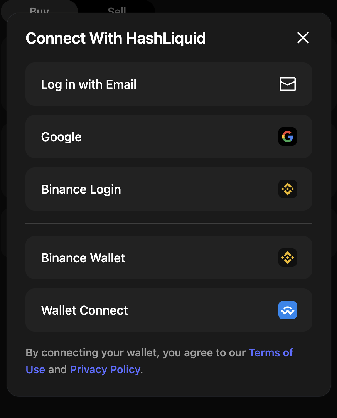
Sign in with email, Google, Binance Login, Binance Wallet, or WalletConnect.
You can access HashLiquid with email, Google, Binance Login, Binance Wallet, or a supported wallet through WalletConnect. Choose the method linked to the account or wallet you want to use for trading.
## Choose how to access HashLiquid
1. Open HashLiquid and select the connection or login option.
2. Choose **Log in with Email**, **Google**, **Binance Login**, **Binance Wallet**, or **Wallet Connect**.
3. Follow the on-screen prompts for the method you selected. Email and Google users complete the sign-in prompts shown by HashLiquid; Binance and wallet users may also need to authorize the connection.
HashLiquid access options
## Access with Binance Login
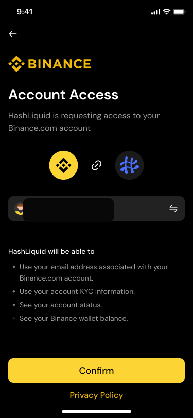
1. On the HashLiquid access page, select **Binance Login**.
2. Review the account and permissions shown on the Binance authorization page.
3. Select **Confirm** to continue to HashLiquid.
{% hint style="warning" %}
Only approve the request if you recognize HashLiquid and the Binance Account shown on the page.
{% endhint %}
Review Binance authorization
## Access with Binance Wallet or WalletConnect
1. Select **Binance Wallet** or **Wallet Connect** on the HashLiquid access page.
2. If you selected **Wallet Connect**, choose an available wallet.
3. Approve the connection request in your wallet, then return to HashLiquid.
{% hint style="info" %}
Connecting a wallet never requires you to share your recovery phrase or private key.
{% endhint %}
## Where can I find my account features?
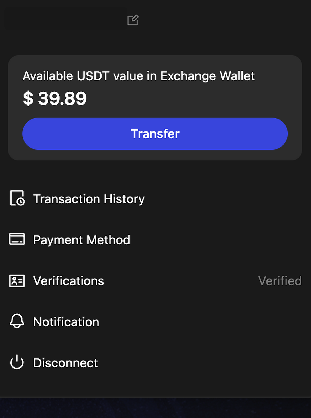
After you sign in, select the **account** icon in the upper-right corner. From the account menu, you can access:
* **Edit nickname** (the pencil icon next to your name)
* **Deposit** and **Withdraw**
* **Transaction History**
* **Payment Method**
* **Verifications**
* **Notification**
* **FAQ**
* **Disconnect**
HashLiquid account menu
### Set up order notifications
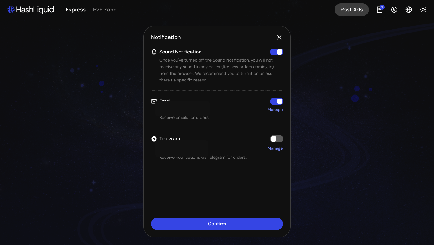
To choose how you receive order alerts, open **Notification** and enable **Sound Notification**, **Email**, or **Telegram**.
{% hint style="info" %}
Keep at least one channel enabled while you have an active P2P order.
{% endhint %}
Notification settings
## Related articles
* [How do I complete identity verification on HashLiquid?](/getting-started/identity-verification.md)
* [How do I add, edit, or remove a Payment Method?](/getting-started/payment-methods.md)
---
# Agent Instructions
This documentation is published with GitBook. GitBook is the documentation platform designed so that both humans and AI agents can read, navigate, and reason over technical content effectively. Learn more at gitbook.com.
## Querying This Documentation
If you need additional information that is not directly available in this page, you can query the documentation dynamically by asking a question.
Perform an HTTP GET request on the current page URL with the `ask` query parameter, and the optional `goal` query parameter:
```
GET https://docs.hashliquid.com/getting-started/access-hashliquid.md?ask=&goal=
```
`ask` is the immediate question: it should be specific, self-contained, and written in natural language.
`goal` is optional and describes the broader end goal you are ultimately trying to accomplish on behalf of the user. GitBook uses it to tailor the answer towards what is most useful for that goal.
The response will contain a direct answer to the question and relevant excerpts and sources from the documentation.
Use this mechanism when the answer is not explicitly present in the current page, you need clarification or additional context, or you want to retrieve related documentation sections.